
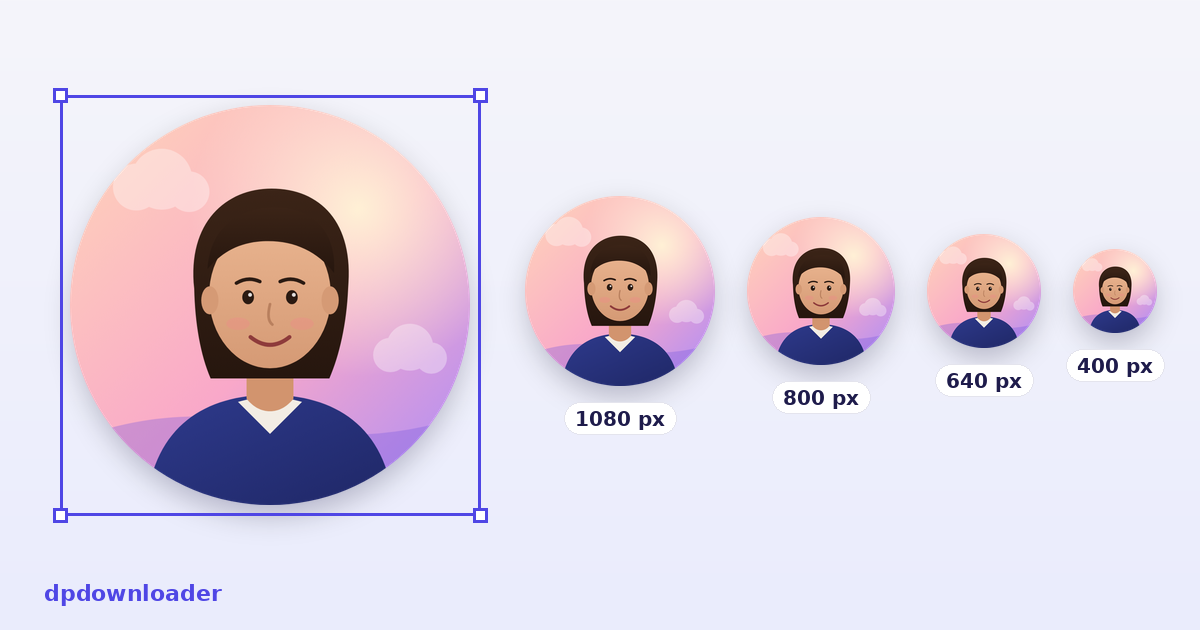
Why a resized picture looks better than an uploaded one
Every platform shrinks what you upload, crops it to a circle, and compresses it again. When you hand it a large rectangular photo, it decides the crop for you, usually by cutting off the middle of whatever it was given, and it resizes in one rough step. The picture that comes out is often softer and less centred than the one you chose.
Giving the platform a square that is already framed and already the right size removes those decisions. There is nothing left for it to crop, and the resize it does is small. That is the whole point of this tool, and it is why the crop happens inside the same circle the platform will use.
The sizes this tool exports
Each platform button saves a square at the size listed below. The rule behind every number is the same: export at or above the largest copy the platform keeps, so the platform only ever makes your picture smaller and never has to enlarge it. Where we measured the stored maximum ourselves, that figure is used directly.
| Platform | Exported size | Why that size |
|---|---|---|
| Instagram, TikTok | 1080 × 1080 | TikTok keeps avatars up to 1080; Instagram is given the same so nothing is lost |
| YouTube | 800 × 800 | The size YouTube asks for in its own channel settings |
| 800 × 800 | Sharp on high resolution screens without being needlessly heavy | |
| 750 × 750 | The largest avatar Pinterest stores, measured | |
| 720 × 720 | Comfortably above every size Facebook displays | |
| WhatsApp, Telegram | 640 × 640 | The size both apps keep for a full profile photo |
| Twitch, Kick | 600 × 600 | Twitch stores 600 at most, measured; larger requests return an error |
| Discord | 512 × 512 | Plenty for every place Discord shows an avatar |
| GitHub | 460 × 460 | The size GitHub serves, measured |
| X | 400 × 400 | X resizes every avatar to 400 on upload, measured |
If you need something else, the Custom button takes any size from 64 to 4096 pixels.
Bigger is not always better. Uploading a 4000 pixel photo to a platform that keeps 400 does not give you a sharper avatar. It gives the platform a bigger resize to do, and its resize is usually rougher than the one done here.
Keep your face inside the circle
Almost every platform shows profile pictures as a circle, and the corners of the square are simply thrown away. A face placed near the edge of the square ends up clipped once the circle is applied. The editor dims everything outside the circle so you can see exactly what will survive, and a grid appears while you drag to help you centre your eyes.
A good default is to keep your eyes slightly above the middle and leave a little space above your head. In the smallest previews, faces that fill most of the circle stay recognisable far longer than faces with lots of background around them.
See it at the sizes people actually see
Most people will never see your profile picture at full size. They see it at 40 pixels beside a post, at 24 pixels next to a comment, and often on a dark screen. The preview panel under the editor shows your picture at all of those sizes, in light and dark mode, while you edit.
This is where a lot of pictures fail. Busy backgrounds turn into noise, low contrast faces disappear on dark mode, and text inside the picture becomes unreadable. If your picture still reads clearly at 24 pixels, it will work everywhere.
JPG, PNG or WebP
JPG is the right choice for photos. It is small and every platform accepts it.
PNG keeps edges crisp and supports transparency, so it suits logos, illustrations and anything with flat colour or text.
WebP is smaller still at the same quality and works almost everywhere today, though a few older upload forms still reject it. If an upload fails, save as JPG instead.
The round PNG option cuts the corners away and makes them transparent. That is useful for logos and for places that show the picture as it is, such as a website, a slide or a chat sticker.
One photo, every platform
If you are updating your picture everywhere at once, the ZIP button saves one correctly sized file for each platform in a single download, all from the same crop. The files are named by platform and size, so there is no guessing which one goes where.
Your photo is never uploaded
The editor runs entirely in your browser. Your photo is opened on your device, the resizing happens on your device, and the file you download is created on your device. Nothing is sent to our server, and you can check that by turning on airplane mode after the page has loaded: the tool keeps working.
 Instagram
 TikTok
 YouTube
 Roblox
 X
X Telegram
 Pinterest
 Twitch
 Kick
Kick GitHub