
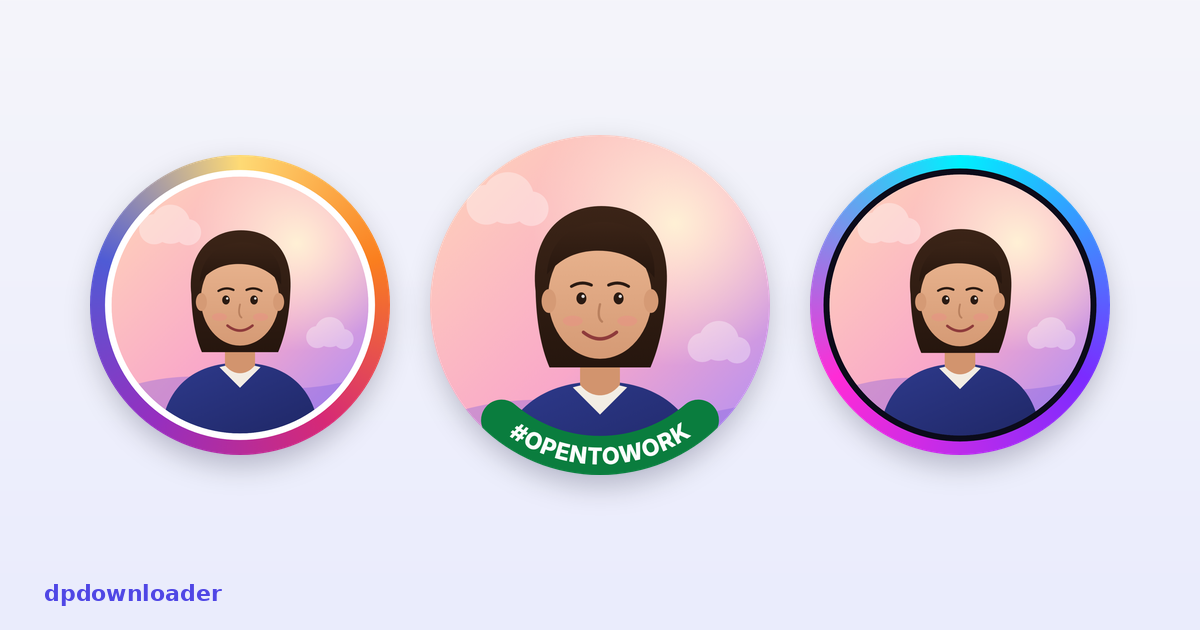
What a border is for
A profile picture is mostly seen small: beside a post, in a list of followers, next to a comment. At those sizes a photo blends into everything around it. A ring with strong colour gives it an edge to stop on, so it is recognised before the face is. That is why brands, creators and streamers often use one, and why a simple ring is often a better change than a new photo.
The preview panel under the editor shows the bordered picture at every size it is likely to appear, on light and dark screens. If the ring still reads at 24 pixels, it is doing its job.
The looks, and what to change
The style buttons are starting points, each drawn live with your photo. Once you pick one, everything can be adjusted:
- Ring: solid, gradient, double or dashed, with its own thickness.
- Space: a gap between the photo and the ring, in any colour. A white gap is what makes a gradient ring look like the familiar story ring.
- Colours: pick one or two. Changing a colour switches a preset gradient to your own two colour version.
Thin rings disappear at small sizes. If the ring vanishes in the 32 pixel preview, make it thicker before you save.
Curved text, in any language
Type up to forty characters and they run around the bottom or the top of the circle, with or without a coloured band behind them. This is the style made popular by job seeking frames, and it works just as well for a team name, an event or a birthday.
Most border tools place curved text one letter at a time, which breaks any script where letters join. Arabic, Persian and Urdu come out as separate, unconnected letters, and some Indian scripts lose their marks. Here the whole line is shaped first, exactly as your browser would show it, and only then bent around the circle. Arabic stays joined, emoji stay intact, and the text reads the right way round at the bottom as well as the top.
About the job seeking style. The green Open to Work look here is a picture with the band drawn into it, so it works on every platform. On LinkedIn itself you can also switch on the official frame in your profile settings. Using both at once would show the band twice, so choose one.
Use your own frame
Campaigns, schools, clubs and events often hand out a frame as a PNG with a transparent middle, sometimes called a twibbon. Add it with the frame button and it is laid over your photo at the exact size of the export. You can still move and zoom the photo underneath until it sits right inside the frame.
Round or square
Round saves a PNG with transparent corners. Platforms crop to a circle anyway, and on websites, slides and documents the picture keeps its shape instead of sitting in a white square.
Square fills the corners with your space colour. Use it for the few places that show profile pictures as squares, or when an upload form refuses transparency.
The size menu lists the right export size for each platform. If a platform is not listed, Instagram's 1080 is a safe choice almost everywhere.
Private by design
Everything here runs in your browser. Your photo and your frame are opened on your device and the PNG is created there. Nothing is uploaded, which also means the tool keeps working if your connection drops after the page has loaded.
 Instagram
 TikTok
 YouTube
 Roblox
 X
X Telegram
 Pinterest
 Twitch
 Kick
Kick GitHub